How to Copy and Download YouTube Comments: 4 Ways That Work on Any Video
Why Download YouTube Comments?
YouTube comments are unstructured, unfiltered feedback from real viewers. Downloading them into a structured file — CSV, JSON, or a spreadsheet — lets you search, sort, filter, and analyze at scale. Scrolling through comments on the page works for 20 comments. It does not work for 2,000.
Four common reasons people download YouTube comments:
- Market research: Product teams download comments from review videos to understand what customers like, dislike, and wish existed. A thousand comments on a product review video contain more honest feedback than most customer surveys.
- Content creation: YouTubers download comments from their own videos — and competitor videos — to find recurring questions, content requests, and audience pain points. Each pattern is a potential video idea backed by real demand. We cover this in depth in our YouTube comment analysis guide for creators.
- Academic research: Researchers studying public discourse, sentiment, misinformation, or language patterns use YouTube comment data as a corpus. Downloading comments in a structured format is the first step in any computational analysis.
- Competitor analysis: Brands and agencies download comments from competitor channels to track sentiment, identify complaints, and spot opportunities that competitors are ignoring.
Whatever the reason, you need the data out of YouTube and into a file you can work with. Here are four ways to do that.
Method 1: Comment Exporter Chrome Extension (Recommended)
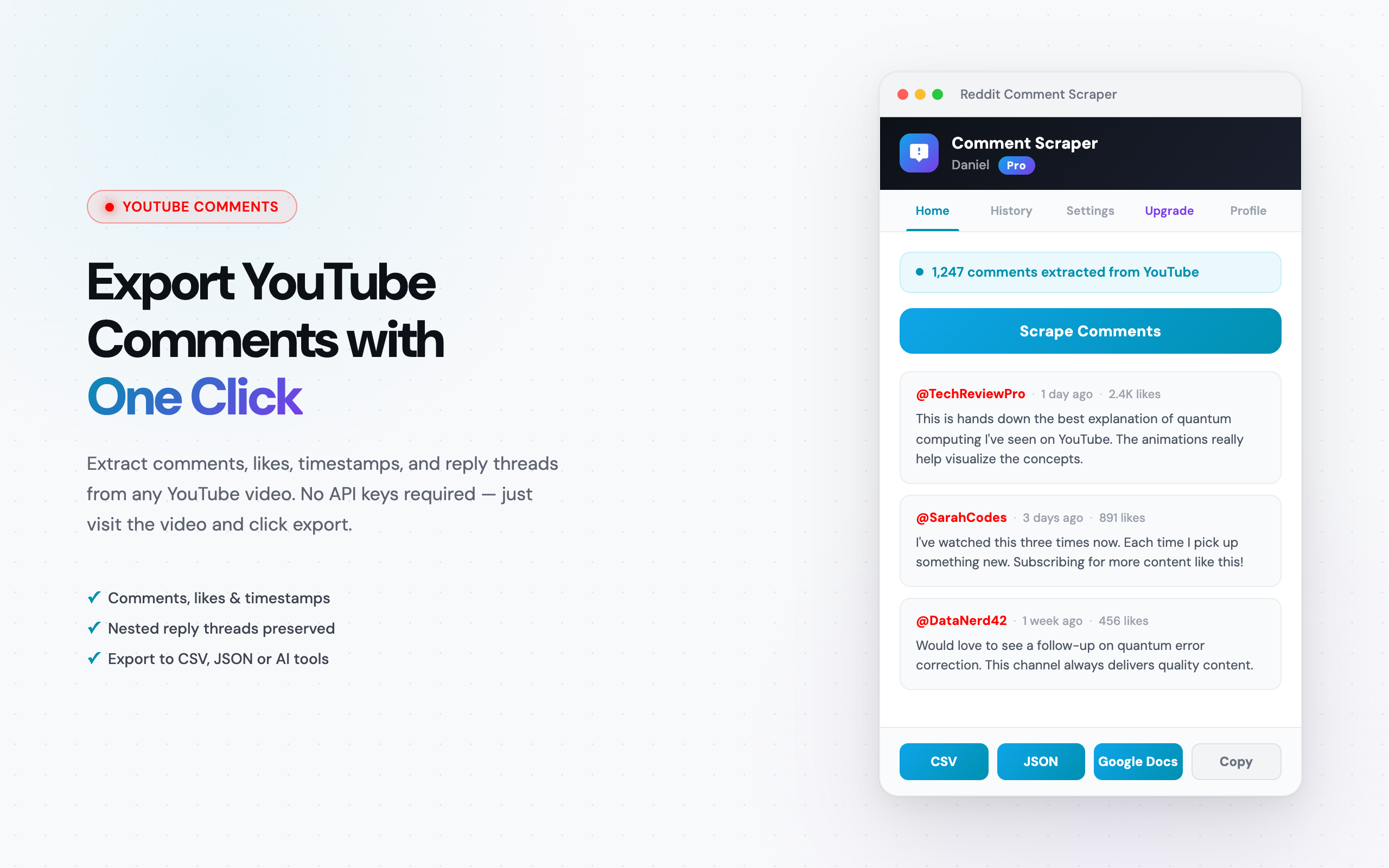
This is the fastest method for most people. Comment Exporter is a Chrome extension that downloads YouTube comments directly from the page, no API keys, no coding, no account setup.
How It Works
- Install the extension from the Chrome Web Store.
- Navigate to any YouTube video.
- Click the Comment Exporter icon in your browser toolbar.
- Choose your format — CSV or JSON.
- Click download. The extension scrolls through the comment section, captures every comment and reply, and saves the file to your computer.
That is the entire process. A video with 500 comments takes under a minute. Videos with 5,000+ comments take a few minutes — the extension scrolls automatically.
What You Get
Each downloaded comment includes:
- Comment text: The full body of the comment.
- Author name: The commenter's display name.
- Like count: Number of likes on the comment.
- Timestamp: When the comment was posted.
- Reply threads: All nested replies, linked to their parent comment.
Pricing
YouTube downloading is part of the Starter plan at $49/mo, which includes all 11 supported platforms. Annual billing saves 32%. Reddit scraping is free, no payment required, so you can test the extension before committing.
Pros
- One-click download — no technical setup
- Captures all comments including replies
- CSV and JSON output formats
- Works on any public video regardless of comment count
- No API quotas or rate limits
Cons
- Requires Chrome or a Chromium-based browser
- YouTube access requires the paid Starter plan
- Not suitable for automated or scheduled downloads
Method 2: YouTube Comment Downloader Web Tools
Several free websites let you download YouTube comments by pasting a video URL. These tools run a server-side process — typically using the YouTube Data API behind the scenes — and return a downloadable file.
How They Work
- Go to the web tool's site (examples: YouTubeComments.com, Exportcomments.com).
- Paste the YouTube video URL.
- Wait for processing. The tool fetches comments via the API.
- Download the file — usually CSV or Excel.
Pros
- No installation needed — works in any browser
- Some tools are free for small exports
- No account required on some platforms
Cons
- Comment limits on free tiers — many cap at 100-500 comments per export
- Slow for videos with thousands of comments
- Some tools strip reply threads or metadata
- Dependent on the YouTube Data API — subject to quota limits and occasional downtime
- Privacy concern: you are pasting URLs into a third-party server
Web tools work well for quick, one-off downloads of small comment sections. For anything beyond a few hundred comments or regular use, the limitations add up.
Method 3: YouTube Data API
The YouTube Data API is Google's official interface for accessing YouTube data programmatically. This is the method for developers who want full control — or need to integrate comment downloading into an automated pipeline.
What You Need
- A Google Cloud account with a project and API key enabled for the YouTube Data API v3.
- Programming knowledge — Python is the most common choice.
- Familiarity with pagination — the API returns comments in pages of up to 100, so you need to loop through page tokens to get all comments.
How It Works (Conceptual)
The API endpoint commentThreads.list returns top-level comments for a given video ID. Each comment thread includes the top-level comment and — optionally — its replies. A typical workflow:
- Authenticate with your API key.
- Call
commentThreads.listwith the video ID and desired parts (snippet,replies). - Loop through pages using
nextPageTokenuntil all comments are fetched. - Write results to CSV or your preferred format.
Rate Limits
The YouTube Data API has a daily quota of 10,000 units per project. A single commentThreads.list call costs 1 unit and returns up to 100 comment threads. That gives you roughly 1,000,000 comment threads per day — more than enough for most use cases. The bottleneck is not quota but pagination latency: fetching 10,000 comments requires 100+ sequential API calls.
Pros
- Full control over data retrieval and output format
- Can be automated and scheduled
- Access to metadata not available via browser — such as comment IDs and moderation status
- Free to use within quota limits
Cons
- Requires a Google Cloud account and API key setup
- Requires programming skills (Python, JavaScript, etc.)
- Pagination logic adds complexity
- Reply retrieval requires separate API calls, increasing total request count
- Daily quota can be exhausted on large-scale projects
If you are comfortable writing code and want automated or scheduled downloads, the API is the right choice. For a deeper comparison of scraping tools — including API-based options — see our guide to YouTube comment scrapers in 2026.
Method 4: Manual Copy-Paste
This is the no-tool method. Open a YouTube video, scroll through the comments, select text, copy, paste into a spreadsheet or document.
When This Makes Sense
It makes sense exactly once: when you need fewer than 20-30 comments from a single video and do not plan to do this again. That is it.
How to Do It
- Open the YouTube video and scroll down to the comment section.
- Scroll to load more comments. YouTube loads comments lazily — you need to scroll to reveal them.
- Select the comments you want, copy with Ctrl+C (Cmd+C on Mac).
- Paste into Google Sheets, Excel, or a text file.
Pros
- No tools, no installation, no cost
- Works immediately
Cons
- Extremely slow — impractical for more than 30 comments
- No structured data — you get raw text without separate fields for author, likes, or timestamp
- No reply thread structure
- Formatting breaks when pasting into spreadsheets
- YouTube's lazy loading means you must manually scroll to reveal all comments before copying
Manual copy-paste is a fallback, not a method. If you are reading a guide on downloading YouTube comments, you almost certainly need something more structured.
Comparison Table: All 4 Methods
| Criteria | Comment Exporter | Web Tools | YouTube Data API | Manual Copy-Paste |
|---|---|---|---|---|
| Ease of use | One click | Paste URL, click download | Requires coding | No tools needed |
| Speed | Fast (auto-scrolls) | Moderate | Fast (programmatic) | Very slow |
| Output format | CSV, JSON | CSV, Excel (varies) | Any (you control it) | Raw text |
| Replies included | Yes | Sometimes | Yes (extra API calls) | No structure |
| Comment limit | No cap | 100-500 (free tier) | 10,000 units/day quota | ~30 practical max |
| Cost | $49/mo (Starter) | Free (limited) or paid | Free | Free |
| Technical skill | None | None | Developer-level | None |
| Automation | No | No | Yes | No |
Bottom line: For non-technical users who need structured comment data, Comment Exporter is the most practical option. For developers who need automation, the YouTube Data API is the right tool. Web tools are fine for quick, small exports. Manual copy-paste is a last resort.
What Data Can You Download?
Regardless of which method you choose, YouTube comments contain several useful data fields. Here is what you can expect to capture:
- Comment text: The full body of the comment — this is the primary data point for sentiment analysis, keyword extraction, and topic clustering.
- Author name: The display name of the commenter. Useful for identifying repeat commenters, influencers, or bots.
- Timestamp: When the comment was posted. Allows you to track comment volume over time and correlate spikes with external events (video going viral, being shared on social media, etc.).
- Like count: The number of likes on a comment. High-like comments represent consensus — they surface the opinions that other viewers agree with.
- Reply count: How many replies a comment received. High-reply comments indicate discussion — controversial takes, genuine questions, or topics worth debating.
- Reply threads: The full text and metadata of nested replies. Reply threads often contain the most substantive discussion — follow-up questions, corrections, and detailed opinions that top-level comments lack.
Comment Exporter captures all of these fields automatically. The YouTube Data API provides these plus additional metadata like comment IDs and moderation status. Web tools and manual copy-paste typically capture a subset.
Frequently Asked Questions
Can I download comments from any YouTube video?
Yes. You can download comments from any public YouTube video that has comments enabled — your own videos, competitor videos, or any other public video. The only exceptions are videos where the creator has disabled comments or videos set to private or unlisted.
Is there a limit to how many YouTube comments I can download?
With Comment Exporter, there is no hard cap. The extension scrolls through the entire comment section automatically and captures every visible comment, including replies. Videos with 10,000+ comments may take a few minutes, but all comments are downloaded. The YouTube Data API, by contrast, has a daily quota of 10,000 units — which limits throughput on very large projects.
What file format are downloaded YouTube comments saved in?
Comment Exporter saves comments as CSV or JSON — you choose the format before downloading. CSV files open directly in Excel, Google Sheets, or any spreadsheet tool. JSON is useful if you plan to process comments programmatically or feed them into analysis scripts.
Do I need an API key or developer account to download YouTube comments?
Not if you use a browser extension like Comment Exporter. The extension works directly on the YouTube page — no API keys, no Google Cloud project, no developer setup. If you choose the YouTube Data API method, you will need a Google Cloud account and an API key, which involves more setup.
Are reply threads included when I download YouTube comments?
Yes. Comment Exporter captures both top-level comments and all nested replies. Each reply includes the same data fields — author name, comment text, like count, and timestamp. In the CSV export, replies are linked to their parent comment so you can reconstruct full conversation threads.
See also on Adlicio: Adlicio's YouTube comment scraper for ad research.